

GPT Image 2 Thinking Mode: The Hidden Web Grounding Trick for Infographics.
TL;DR / Key Takeaways
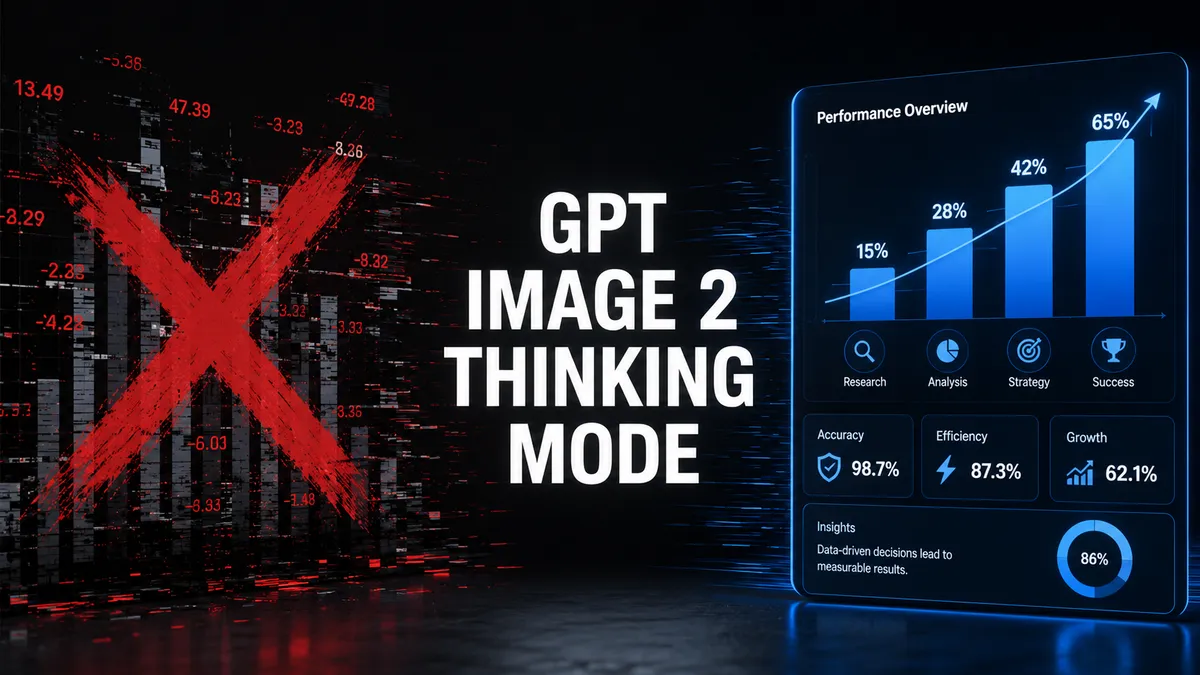
GPT Image 2 was released by OpenAI on April 22, 2026. It integrates O-series reasoning directly into the image generation pipeline. A hidden thinking mode allows the model to search the web for factual references, plan layouts based on real data, and verify outputs before showing them. You trigger this mode using specific prompt phrasing. It takes 30 seconds longer to run but produces accurate infographics, menus, and data visualizations instead of hallucinated charts.
GPT Image 2 can search the web, plan a layout, and verify data before it draws. This Masterclass shows you how to trigger thinking mode for accurate infographics. R
GPT Image 2 Thinking Mode: The Hidden Web Grounding Trick for Infographics
GPT Image 2 can search the web, plan a layout based on actual information, and verify the output before showing it to you. This changes how you build AI infographics forever.
When OpenAI released GPT Image 2 on April 22, 2026, they quietly integrated O-series reasoning directly into the image generation pipeline. Most users still type basic prompts and get generic results. They miss the most powerful feature of the new model. You can unlock a hidden web grounding trick that forces the AI to research before it draws.
This Masterclass shows you exactly how to trigger thinking mode so your data visualizations finally make sense.
Why AI Infographics Usually Fail
Older image models like DALL-E 3 work from pattern memory alone. When you ask for an infographic about freelance income, the model invents numbers. It draws pretty charts that mean absolutely nothing. The bars look good, but the data is completely fake.
You cannot ship fake data to a client. You need the AI to understand the information before it tries to visualize it. GPT Image 2 solves this problem by thinking before drawing. It treats your prompt as a research task first and a drawing task second.
What Is GPT Image 2 Thinking Mode
Thinking mode is the integration of O-series reasoning into the image generation pipeline. Instead of jumping straight to pixels, the model breaks your request into steps. It researches the topic, plans the visual hierarchy, and verifies the text against your instructions.
According to a hidden tricks guide published in June 2026, thinking mode allows GPT Image 2 to ground a menu design in actual structured data. It does not invent a layout that merely looks plausible. It builds a layout that matches the real world. This matters most for infographics, menus, and anything involving real numbers, dates, or facts.
How to Trigger Web Grounding in Your Prompts
The model does not turn on thinking mode automatically. You have to prompt it correctly. You need to tell the model to use the web, plan the layout, and verify the facts.
Use these specific phrases in your prompt to activate the feature: * "Search the web for factual reference on..." * "Plan a layout based on actual information hierarchy..." * "Verify the data points before rendering..." * "Ground the design in real structured data..."
When you use these phrases, the model switches from pattern matching to research mode. It takes about 30 seconds longer to generate the image, but the results speak for themselves. The model actually reads the internet, finds the data, and builds the visual around it.
Standard Prompt vs Web Grounded Prompt
You will see a massive difference in output quality when you switch your prompt structure. The table below shows how the two approaches compare.
| Prompt Style | Accuracy | Speed | Best Use Case |
|---|---|---|---|
| Standard Prompt | Low (Hallucinated data) | Fast (5 seconds) | Abstract art, mood boards, textures |
| Web Grounded Thinking Prompt | High (Real data) | Slow (30+ seconds) | Infographics, menus, charts, reports |
If you want a picture of a cat on a skateboard, use a standard prompt. If you need an infographic about global renewable energy trends for a client presentation, you must use the thinking mode prompt.
A Copy Ready Prompt for Accurate Infographics
Here is a prompt you can test right now in ChatGPT. This prompt forces the model to research, plan, and verify before it draws a single pixel.
"Create a clean infographic about freelance income streams in 2025. Search the web for factual reference on current freelancer revenue sources. Plan a layout based on actual information hierarchy. Include three key data points with accurate percentages. Use a modern layout with icons and a white and blue color palette. Verify the data points before rendering the final image."
Notice the structure. You give the topic, trigger the web search, demand a layout plan, specify the data points, and ask for verification. The model follows these steps in order. You get an infographic with real data instead of random numbers.
The Tradeoff Is Speed
Thinking mode is not free. The model does real work when you activate it. It reads websites, processes the information, and plans the layout. This adds about 30 seconds to your generation time.
Most users want instant results, so they never use this feature. They accept bad data because it generates in five seconds. You can afford to wait 30 seconds for an image you can actually use in a professional setting. The time investment pays off when you do not have to manually fix the charts in Photoshop later.
When to Use This Trick
You should only use thinking mode when accuracy matters. Do not use it for simple tasks. Use it when the image contains text, numbers, or factual claims that must be correct.
Use it for: * Financial infographics for blog posts * Restaurant menus with actual prices * Data visualizations for marketing reports * Educational diagrams for e-learning courses * Product comparison charts
Do not use it for: * Portraits * Landscape art * Abstract backgrounds * Concept art
Save the 30 seconds for the simple stuff. Spend the 30 seconds on the complex stuff.
The Future of Factual AI Art
OpenAI built GPT Image 2 to behave like a designed asset. It reads text well, lays out clean designs, and now, verifies facts. The prompt engineering landscape shifted in 2026. You no longer just describe what you want to see. You instruct the model on how to think about what it draws.
Frequently Asked Questions
What is GPT Image 2 thinking mode?+
How do I trigger thinking mode in GPT Image 2?+
Why does thinking mode take longer?+
When should I use web grounding prompts?+
Was GPT Image 2 released with thinking mode enabled by default?+
Sources & Citations
- 1. RentPrompts, "Master ChatGPT Images 2 with These Hidden Tricks" (Medium, Jun 18, 2026) — confirms thinking mode allows web search for factual reference, planning layout based on actual information, and verifying output before showing it. Notes the 30-second speed tradeoff. https://medium.com/@rentprompts/master-chatgpt-images-2-with-these-hidden-tricks-cb89aa314177 2. Deep Dream Generator, "GPT Image 2: 10 Prompts That Show Off OpenAI's Newest Image" (2026) — confirms GPT Image 2 released April 22, 2026, and is the first OpenAI image model to integrate O-series reasoning directly into the generation pipeline. https://deepdreamgenerator.com/blog/gpt-image-2-best-prompts 3. Pixverse AI, "GPT Image 2 Review 2026: 80 Prompts, API Tips, and Video Workflow" (Jun 23, 2026) — confirms GPT Image 2 is strongest when the image needs to behave like a designed asset with readable text, clean layouts, and infographics. https://pixverse.ai/en/blog/gpt-image-2-review-and-prompt-guide 4. OpenAI Developers, "GPT Image Generation Models Prompting Guide" — confirms key capabilities include high-fidelity photorealism, robust facial preservation, reliable text rendering, and complex structured visuals. https://developers.openai.com/cookbook/examples/multimodal/image-gen-models-prompting-guide